Getting startedGuide
First request from Google Colab: keep the API key in Secrets
Send your first chat completion from a Colab notebook with the key stored in Colab Secrets, then read the answer and token usage.
On this page
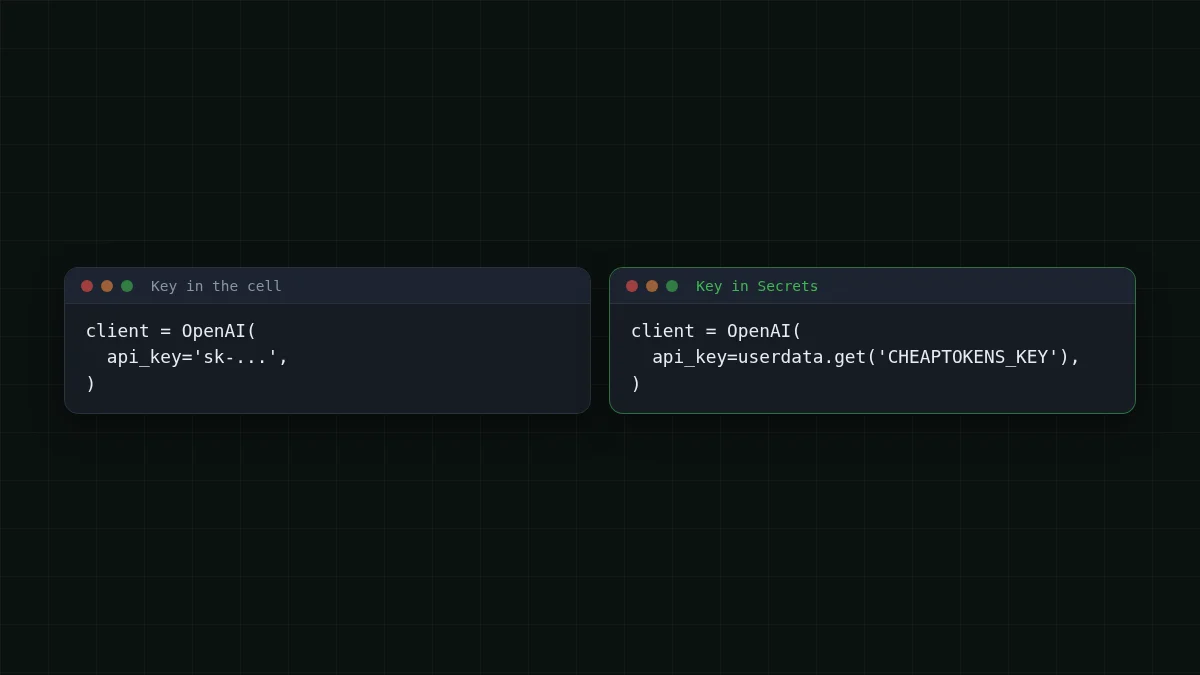
You can run your first request in a Colab notebook without installing anything on your computer. Save the key in Colab Secrets, read it with userdata., point the openai package at https:/, and print choices[0]. and usage. The key never sits in a cell, so sharing the notebook doesn't share your key.
That last part is the reason to bother. Say you finish the notebook and send the link to a classmate. If the key is pasted into a cell, they now have it. If it lives in Secrets, they get the code and nothing else.
This guide builds on the first request with plain requests. Here the only new thing is where the key lives and how a notebook reads it. For the same idea on a laptop, see storing a key in an environment variable.
What you need#
- A Google account and a new notebook at colab.research.google.com.
- A CheapTokens API key and a topped-up balance. Keys and balance are in your account; the docs show the exact steps.
- Five minutes.
The API is OpenAI Chat Completions compatible, so the standard openai Python package works with a different base_url. The openai-python README (checked 5 November 2026) lists Python 3.10 or higher and pip install openai.
Put the key in Colab Secrets#
In the left sidebar of the notebook there is a key icon, which opens the Secrets panel. Add a new secret, name it CHEAPTOKENS_KEY, paste your key as the value, and switch on notebook access for the notebook you're working in. The wording of buttons can change, so look for the key icon rather than a menu path.
Pick the name you want now: it's the string you will pass to the code. A wrong name is an easy mistake to make, and the errors section shows how it looks.
Run the first request#
Colab reads secrets with google., a function in Google's colabtools module (docstrings checked 5 November 2026). Install the SDK, read the secret, send one request.
Step by step
Your first request in three cells
Install the package
Run this in the first cell. The -q flag keeps the output short, and it works whether or not the package is already in the runtime.
!pip install -q openaiRead the key and create the client
The key comes from Secrets. Nothing is pasted here.
from google.colab import userdata
from openai import OpenAI

client = OpenAI(
    api_key=userdata.get('CHEAPTOKENS_KEY'),
    base_url='https://api.cheaptokens.dev/v1',
)
Send one request and print the result
Use the full model id with the developer prefix. Short ids are not accepted.
resp = client.chat.completions.create(
    model='deepseek-ai/DeepSeek-V4-Flash-0731',
    messages=[{'role': 'user', 'content': 'Explain a token in one sentence.'}],
    max_tokens=200,
)
print(resp.choices[0].message.content)
print(resp.usage.prompt_tokens, resp.usage.completion_tokens)
The first print shows the model's answer. The second prints two numbers: tokens you sent and tokens the model wrote. That's the whole bill for the request, which is why we print it every time.
What the request costs#
Tokens are what you pay for, so look at the second line of output. Say a short question like the one above uses about 40 tokens in and the answer is 150 tokens out. That request costs $0.000016 at the current price, and a thousand of them cost $0.0156. Replace 40 and 150 with the two numbers your notebook printed.
DeepSeek-V4-Flash is the default here for a reason: 380K context, up to 32,768 output tokens per answer, and one price at any time of day, with no peak hours. One balance covers every model, so you can swap the model in this cell without changing anything else. Try zai- (390K context, up to 8,192 output tokens) and run the cell again. See all models and prices for the full list.
Try it yourselfTry it: what is resp.choices[0].finish_reason ?Show answer
Add print(resp. under the other prints. If the answer ended naturally you see stop. Set max_tokens=5 and run again: the answer is cut short and you see length, which means the limit stopped it, not the model.
When a cell fails#
Errors from the secrets side come first, before any request leaves Colab. The colabtools source (checked 5 November 2026) says userdata.get can raise three errors.
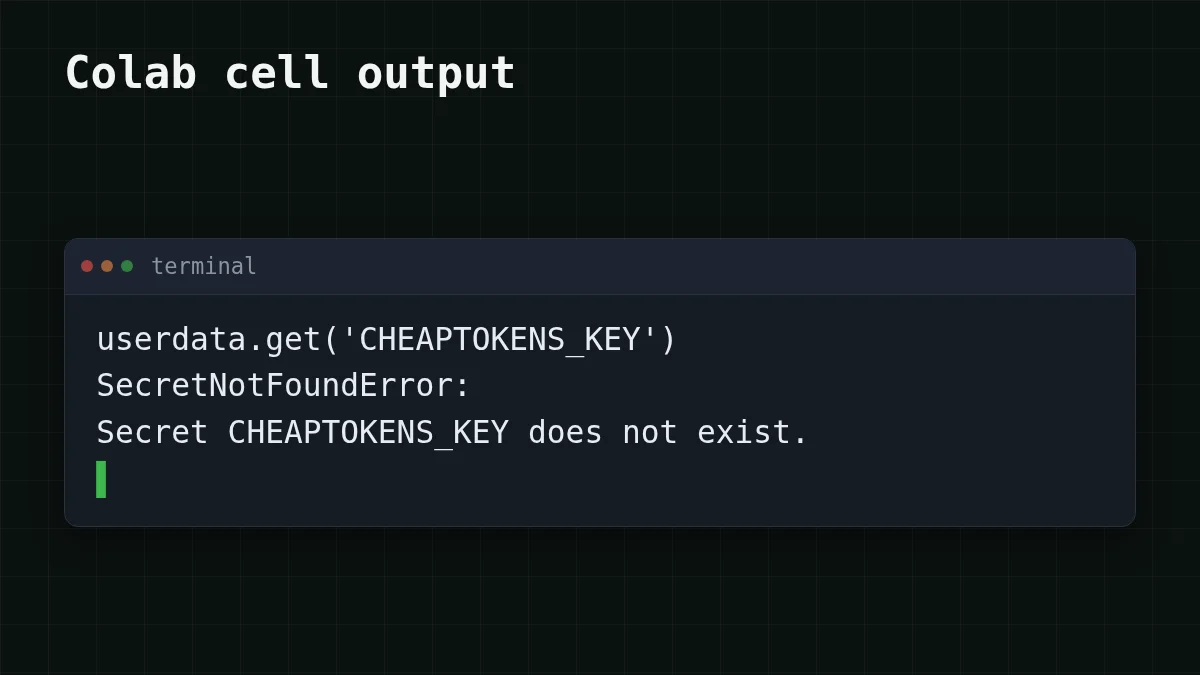
SecretNotFoundError: there is no secret with that name. Compare the string inuserdata.with the name in the Secrets panel, letter by letter. Case matters.get('. . . ') NotebookAccessError: the secret exists, but this notebook has no access to it. Switch the access toggle on in the Secrets panel and rerun the cell.TimeoutException: Colab did not answer the request for the secret. The error message says secrets can only be fetched when the code runs from the Colab UI, so run the cell in the Colab notebook itself, not in an exported script.
If the secret loads and the request still fails, the problem is on the API side. A 401 means the key is wrong or missing; a 404 usually points to a wrong base URL or model id. API 401 or 404: key, base URL, model id walks through both, and listing models with GET /v1/models shows how to copy the exact id.
Sharing and rotating#
Share the notebook and the code that calls userdata.get goes with it; the key is not in any cell or output, so there is nothing to leak. Whoever opens the notebook needs their own secret with the same name, otherwise they get SecretNotFoundError (see above).
If you create a new key, update the value in the Secrets panel; the code stays the same because it only names the secret.
One habit still matters: never print the key. A cell like print(userdata. puts it into the output, and outputs are saved with the notebook.
Quick check
Where should the API key live in a shared Colab notebook?
Show answer
Answer: In Colab Secrets, read with userdata.get
A cell and its output are saved with the notebook and shared with it; the code only names the secret.
Next step: put the answer into a loop, a chat or a small tool. The docs cover the rest of the API.


